
Receipt Mode
Use Receipt Mode to print your Dashboard or Tackle Tasks results as one long slip on a receipt printer.

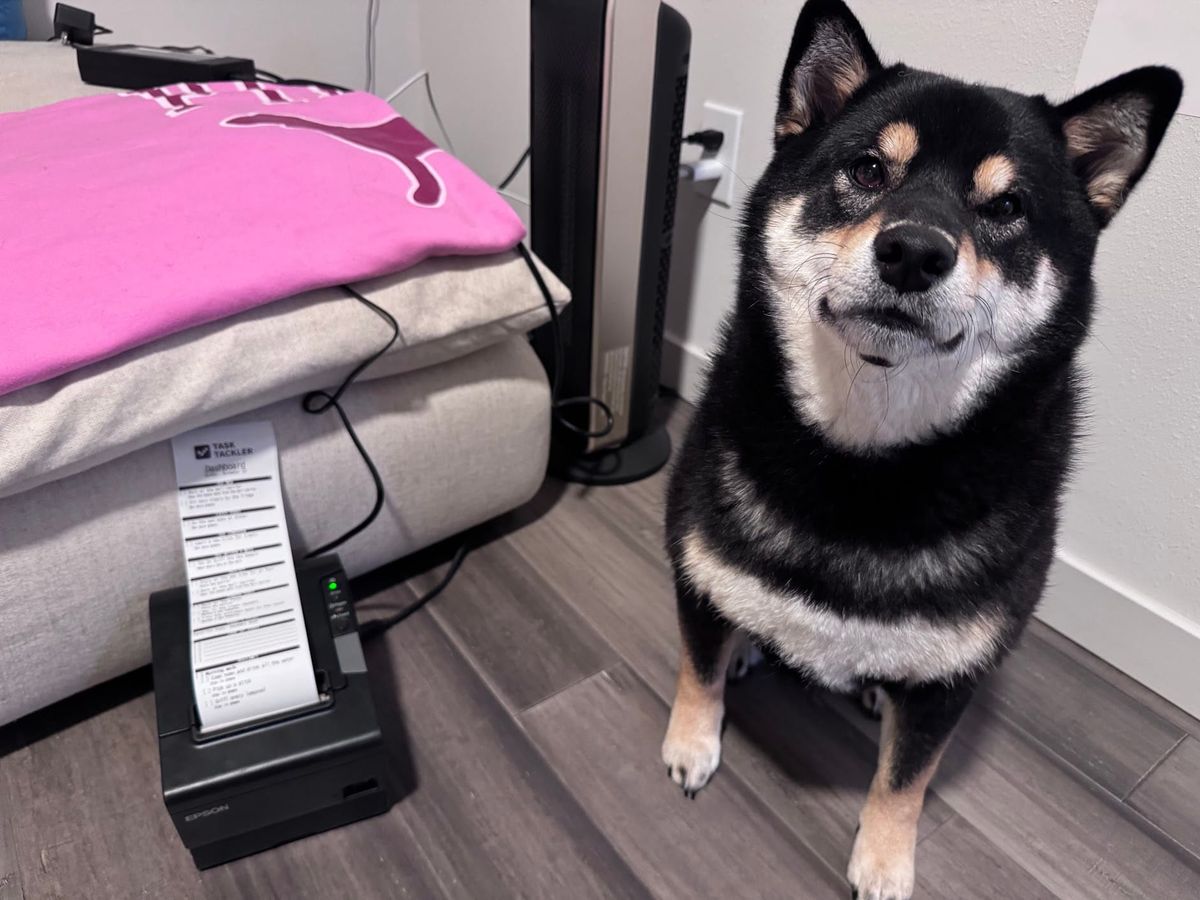
Receipt Mode prints your Dashboard or your Tackle Tasks results on a receipt printer, as one long slip you can carry around and check off.
This is an advanced feature. Everything in Print Mode works on a regular printer, too, so regular users can meet their printing needs there.
What you need
An Epson receipt printer that supports ePOS-Print (such as the TM-T88V-i or TM-m30), on the same network as the device you use TaskTackler on.
Setup
Go to Settings and scroll down to “Receipt printer.” Enter the printer’s IP address and click “Save printer.”
- Give the printer a fixed address, so the one you saved keeps working.
- The first time, open the printer’s address in your browser with https:// in front, and choose to go on past the security warning. (The printer uses its own certificate.)
- After you print a receipt, your browser may call TaskTackler “Not secure” until you restart it. To avoid that, give the printer a certificate for its address and set your computer to trust it.
Nothing about receipts shows anywhere in TaskTackler until you’ve saved an IP address.
Printing a receipt
Once a printer’s address is saved, a “Print a receipt” button appears on the page of choices you get when you print the Dashboard, and a receipt icon  appears above your Tackle Tasks results.
Turning it off
Clear the printer’s address in Settings and save. The receipt buttons disappear.


