Print Mode
Use Print Mode to put your Dashboard or your Tackle Tasks results on paper.
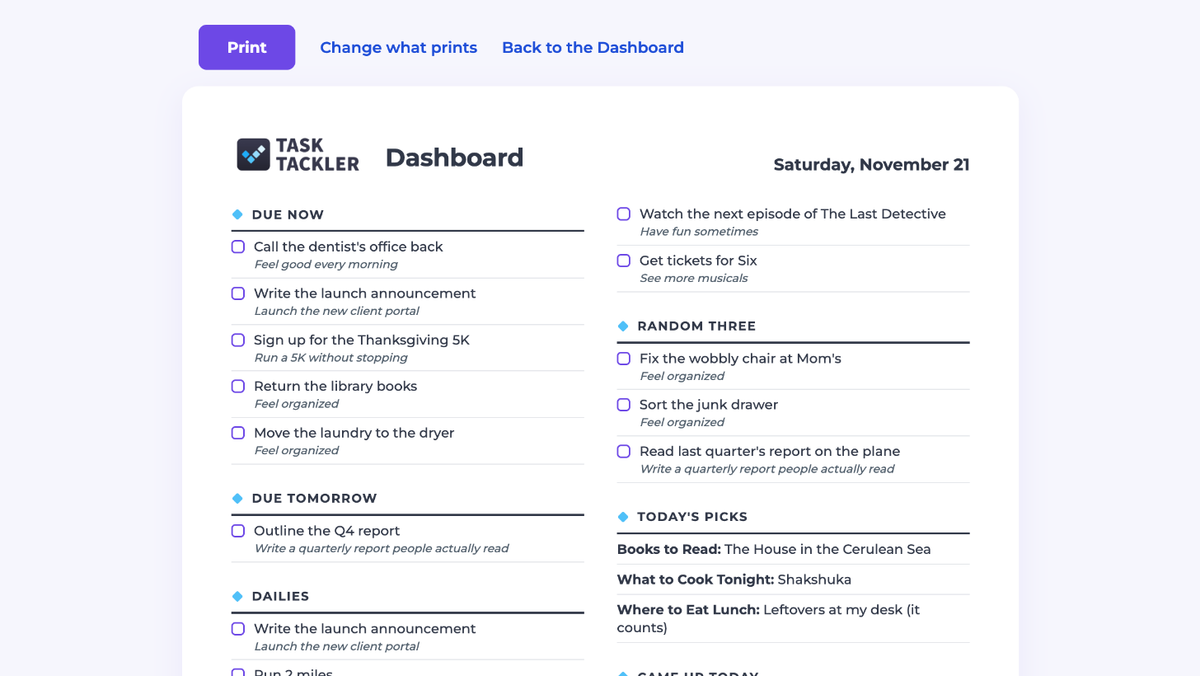
Print Mode puts your day on paper: your Dashboard or your Tackle Tasks results, with a box to check beside every Task.
It’s for the days you want to work away from a screen, or if you simply enjoy that satisfying feeling of checking a box on a heavy piece of paper (who doesn’t?).
Printing your Dashboard
Click the printer icon  at the top of the Dashboard. (The Leisure Dashboard has its own.) You’ll get a page of choices before anything prints.
Dashboard sections
Every section of the Dashboard starts out checked. Uncheck anything you don’t want printed:
- Routines
- Due Now
- Later Today
- Due Tomorrow
- Due Within a Week
- Dailies
- Random Three
- Today’s Picks
- Came up today (blank lines for you to write on)
An empty section is left out automatically.
Routines in full (optional)
Check “Each Routine and its tasks” to print every Task in each Routine that’s on the Dashboard.
Each Task’s Target (optional)
Check “Each Task’s Target” to print the Target in small italics under each Task, so you remember why it’s on your list. This makes the print-out longer.
Save as my default
“Save as my default” remembers your choices, so the page opens the way you like it next time.
Printing your Tackle Tasks results
After you click “Start Work” in Tackle Tasks, click the printer icon above your results to print that list, in the order it’s sorted.
Have a receipt printer?
You can print the same things as one long slip. See Receipt Mode.


