
Dashboards
Use the Dashboard to see today at a glance: what’s due, your Routines, and a few Tasks picked for you.

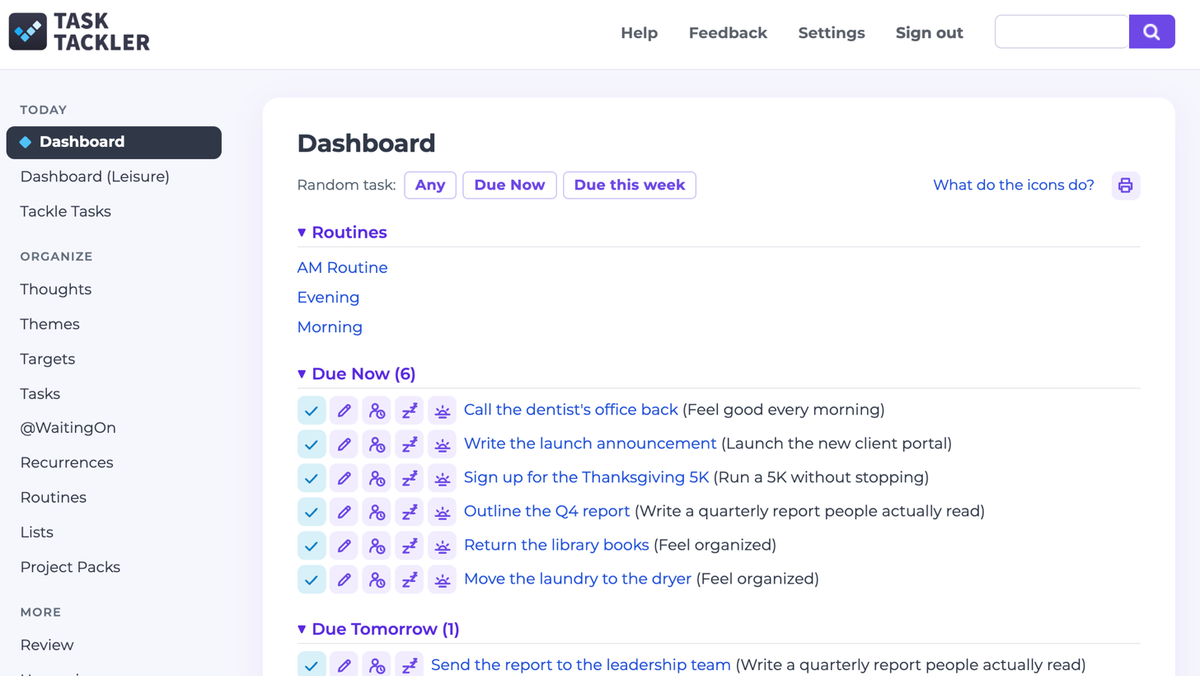
The Dashboard is your action center for the day. It shows what’s due, and it suggests a few Tasks you might not have picked yourself.
There are two Dashboards. “Dashboard” covers everything, and “Dashboard (Leisure)” shows only the Tasks from your Leisure Targets. (See Leisure Mode.)
A section only appears when it has something in it, so all these sections may not appear on your Dashboard all the time.
Random Task
You’ve got enough to decide; let TaskTackler pick your next Task. The links at the top hand you one random Task:
- Any (any Task you can do now, across the entire app)
- Due Now (a Task from the “Due Now” section of the Dashboard)
- Due this week (a Task from the “Due Now,” “Due Tomorrow” or “Due Within a Week” sections of the Dashboard)
Routines
Routines that are available to complete right now.
Due Now
Tasks that are due today or overdue, in Tier order.
Later Today
Tasks you’ve set aside for later in the day. They stay in sight, but they won’t come up if you click Random. (See Keeping Tasks out of sight until you can do them.)
This is useful for Tasks you want to keep a close eye on today, such as if you’re expecting an answer back on a question, or if it’s too early to put out the garbage bins.
Due Tomorrow and Due Within a Week
Tasks due tomorrow, and Tasks due in the week after that, with their due dates.
Dailies
One Task from each Target where you checked “I want to make daily progress on this target.”
Random Three
Three Tasks you can do that aren’t due yet, to mix things up! This can create unexpected forward progress and allow for “productive procrastination.”
Today’s Picks
One item from each List you’ve included on the Dashboard.
Don’t like what you got?
Dailies, Random Three and Today’s Picks are chosen the first time you open the Dashboard each day, and the choices stay the same for the rest of that day. Click “Refresh” on that section if you want to pick again.
Task icons
Here’s a breakdown of the icons on the Dashboard:

Completes the Task.

Opens the Task so you can change it.
Sets the Task aside while you’re waiting on someone else. It moves off the Dashboard to the @WaitingOn page. (See @WaitingOn.)

Moves the Task’s due date to a week from today.

On Tasks under “Due Now.” Moves the Task down to the “Later Today” section. (See Later Today.)

On Tasks under “Later Today.” Puts the Task back under “Due Now.”

At the top of the Dashboard. Prints today on paper.
Every icon in the app is explained on the Icons page.
Printing your Dashboard
Want today on paper? Click the printer icon at the top. See Print Mode (and Receipt Mode, if you have a receipt printer).
Ready to work? Tackle Tasks shows you everything you can do right now, not just what’s due. Ideally, you’ll complete the items on your Dashboard, then roll into Tackle Tasks for the rest of the day.


