
Icons
Use the icons beside a Task, Target or anything else in TaskTackler to act on it without opening it.

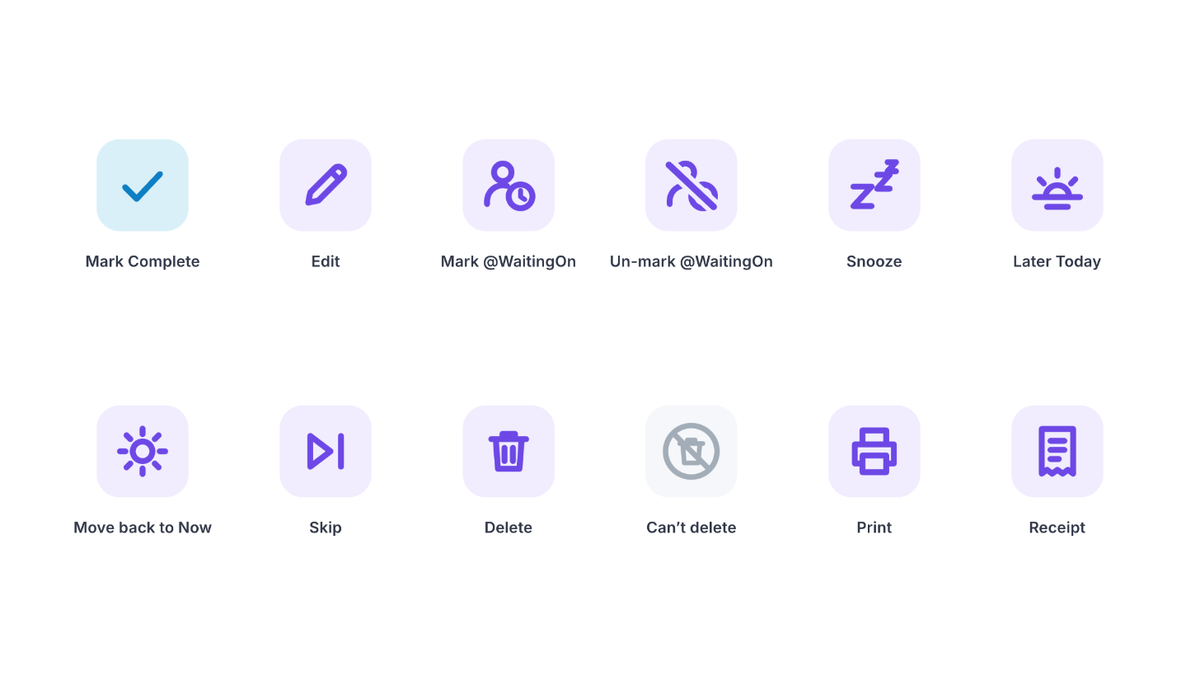
TaskTackler uses small icons for the things you do most often. An icon only appears where it applies, so you won’t see all of these in one place. Not sure what one does? Hover over it for a reminder.
Icons on almost everything

Mark Complete
Completes a Task. If it’s part of a Recurrence, the next one is scheduled. On the page of a Target or a Routine, it completes the whole Target or Routine.
Completes a Task. If it’s part of a Recurrence, the next one is scheduled. On the page of a Target or a Routine, it completes the whole Target or Routine.


Delete
Deletes whatever it’s beside, after asking “Are you sure?” Beside a Dependency, it removes the Dependency, not the Task.
Deletes whatever it’s beside, after asking “Are you sure?” Beside a Dependency, it removes the Dependency, not the Task.

Can’t delete
A greyed-out trash can means this can’t be deleted yet. Hover over it to see why: a Task that belongs to a Recurrence (delete the Recurrence instead), a Target that still has incomplete Tasks, or a Theme that still has Targets.
A greyed-out trash can means this can’t be deleted yet. Hover over it to see why: a Task that belongs to a Recurrence (delete the Recurrence instead), a Target that still has incomplete Tasks, or a Theme that still has Targets.
Icons for Tasks

Mark @WaitingOn
Sets the Task aside while you’re waiting on someone else. It moves to the @WaitingOn page. (See @WaitingOn.)
Sets the Task aside while you’re waiting on someone else. It moves to the @WaitingOn page. (See @WaitingOn.)

Un-mark @WaitingOn
They got back to you. The Task returns to your lists.
They got back to you. The Task returns to your lists.

Snooze for 7 days
Moves the Task’s due date to a week from today.
Moves the Task’s due date to a week from today.

Later Today
Moves a Task that’s due now to the “Later Today” section of the Dashboard, and out of Tackle Tasks. (See Later Today.)
Moves a Task that’s due now to the “Later Today” section of the Dashboard, and out of Tackle Tasks. (See Later Today.)

Move back to Now
Undoes Later Today.
Undoes Later Today.

Skip this time
On a Task in a Routine: hides the Task until the Routine comes around again. Hover over it to see when that is.
On a Task in a Routine: hides the Task until the Routine comes around again. Hover over it to see when that is.
Icons for printing


Print as a receipt
Sends your Tackle Tasks results to a receipt printer. It only appears if you’ve set one up in Settings. (See Receipt Mode.)
Sends your Tackle Tasks results to a receipt printer. It only appears if you’ve set one up in Settings. (See Receipt Mode.)


