
Routines
Use Routines for the Tasks you do together, in the same order, again and again.

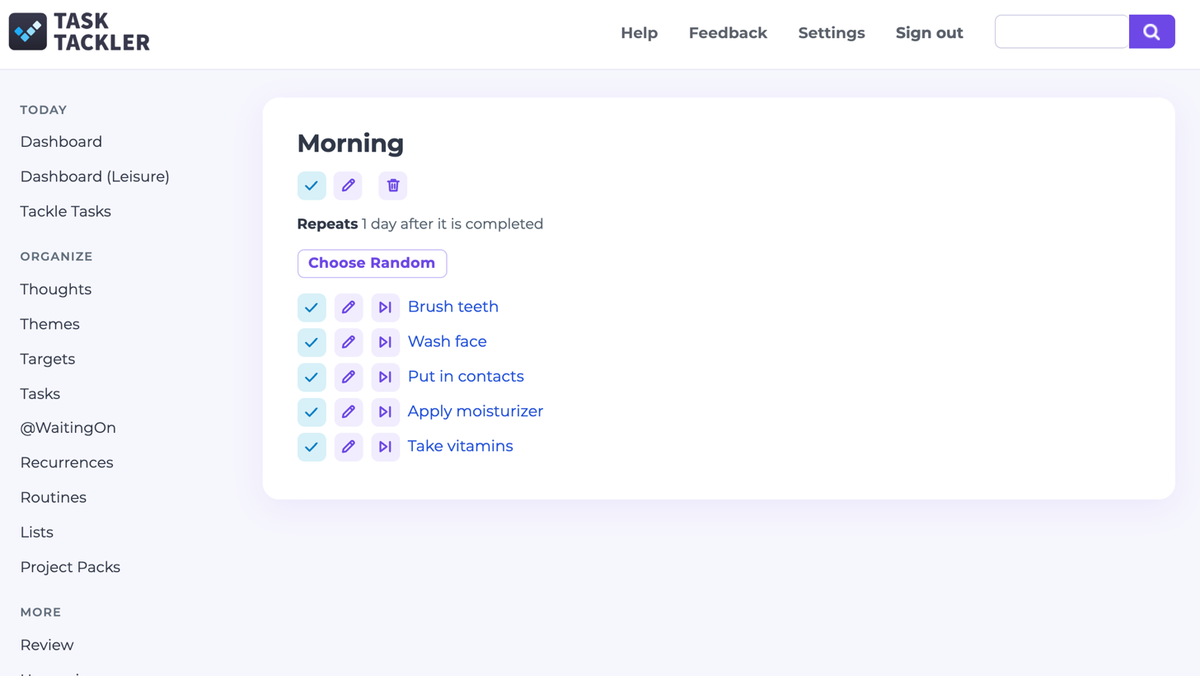
A Routine is a set of Tasks you do together, in the same order, again and again.
These work well as Routines:
- “Morning Routine”
- “Bedtime Routine”
- “Weekly Review”
These are not good Routines:
- “Renovate the kitchen” (you’ll only do it once; that’s a Target)
- “Water the plants” (one Task that repeats; that’s a Recurrence)
Order matters. Drag and drop a Routine’s Tasks in the order that works best for you — for example, so you’re not applying face cream immediately before putting in your contacts (and burning your eyes!).
A Routine’s Tasks stay off your other lists. They don’t show up in Tackle Tasks or in the other sections of the Dashboard, only on the Routine’s own page. The Routine itself appears under “Routines” at the top of the Dashboard whenever it’s due, and you can always access it via Routines in the menu.
Setting up a Routine
Create the Routine on the Routines page.
To change the order of the Tasks, edit  the Routine and drag them into the order you prefer.
Repeat a Routine
Like a Recurrence, every Routine has a Repeat Type:
- “Based on Completion” brings the Routine back a set number of days after you complete it (use 1 for a daily Routine)
- “Based on Schedule” brings it back on fixed days, like Every Sunday or Every Weekday
Working through a Routine
Open the Routine and mark each Task complete  as you go.
Not doing one of them today? Use Skip  , which hides that Task until the Routine comes around again.
Tap “Choose Random” if you’d like to move through the Routine in random order.
When you’re finished, click “Mark Routine Complete” and the whole Routine goes away until it’s supposed to reappear. (You can access it from Routines in the menu if you need it, though.)
Hide until a specific time (optional)
An Evening Routine doesn’t need to be on your Dashboard at 9am. When you edit a Routine, “Hide until a specific time” keeps it off your Dashboard until that time on any day it’s due. It’s still on the Routines page if you want it early.
This feature requires your timezone to be set (and accurate) in Settings.
Hide Until (optional)
There’s also a “Hide Until” date, for when you want a Routine out of sight until a particular day (say, while you’re on vacation).
Printing a Routine
Print Mode on the Dashboard can optionally print any Routines that are due, including all their Tasks.


