
Targets
Use Targets to keep track of all your goals in life, personally and professionally.

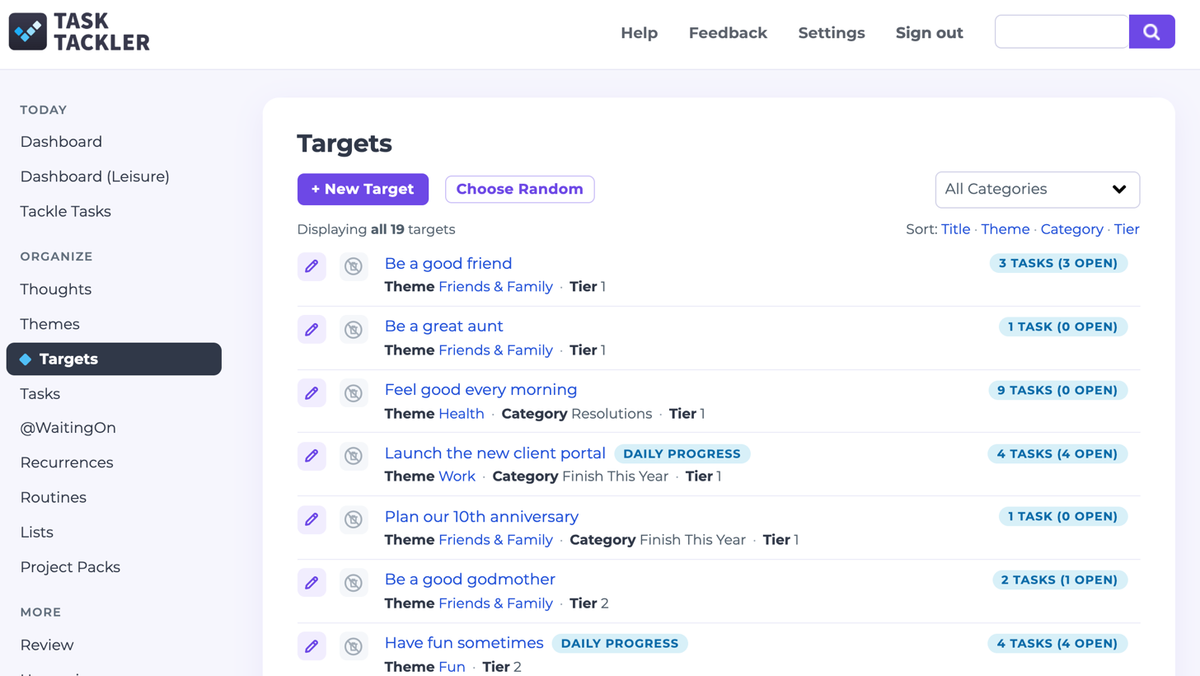
A Target is a description of your end goal. It’s an outcome statement, not an activity; it should describe what “done” looks like.
These work well as Targets:
- “The kitchen is renovated”
- “I can run 5k without stopping”
- “Filed taxes for 2026”
- “Final report sent to my boss”
These are not good Targets:
- “Kitchen” (noun, not a goal)
- “Get fit” (needs more specificity)
- “Read” (verb, not a goal)
In TaskTackler, every Target lives under a Theme. The individual activities that move you towards your Target are Tasks.
Tiers
Every Target must have a Tier between 1-4, or “Someday”:
- 1-4 are active Targets, with 1 being highest priority
- “Someday” is a Target you may want to work on one day, but not now. You can add Tasks to a “Someday” Target so they’re safe and captured, but they will not show up in your workflow.
Tier is what decides the order Tasks are shown in most places in the app, so you see highest-priority Tasks first.
Every Task inherits its Target’s Tier. This keeps you from having to decide how important each individual Task is over and over, when we believe the priority is really associated with a Target.
Did your priorities change? Change the Tier on the Target, and all of its Tasks adjust instantly.
Work or Leisure?
Inspired by Deep Work by Cal Newport, TaskTackler believes a full life includes structured leisure time, too. Instead of collapsing on the couch after work, this helps you tackle your personal goals, whether that’s catching up on a new show, hiking once a week, or teaching your dog a new trick.
Designate each Target as either “Work” or “Leisure” so you can keep focused on non-work on the Leisure Dashboard, and sort Tackle Tasks by Leisure-only outside of work hours.
This differentiation should be more on how you feel about a Target, and not necessarily by what is and is not your job. For example, a Target like “Pay all my bills on time” may be more suited for “Work.”
Daily Progress
Ensure you take at least one action towards a particular Target each day by checking “Daily Progress.” This will show one Task you can do now on your Dashboard each day.
Target Categories (optional)
In general, I sort Targets by Theme. But sometimes I want a cross-cutting way to work on Tasks associated only with certain Themes. This is where Target Categories come in.
On your account Settings page, you can add, edit, and remove your personal Target Categories options.
One example is “Finish This Year.” This Target Category lets me filter Tackle Tasks to only Tasks associated with goals I intend to finish this year, which is especially useful as the year winds down.
Completing a Target
When you’ve reached a Target, mark it Completed  . You can see it later in “Tackled” in the menu, or on its associated Theme page under “Completed Targets,” but it won’t appear in search results anymore.
You cannot mark a Target as Completed if it has incomplete Tasks. Complete or delete them first.
Deleting a Target
Want to delete a Target instead? You can only delete a Target once it has no incomplete Tasks left; the trash can icon  will remain gray until then.


