
Dependencies
Use Dependencies to keep a Task out of sight until the Tasks it depends on are done.

A Dependency says one Task can’t start until another Task is finished. The blocked Task stays out of your way until then.
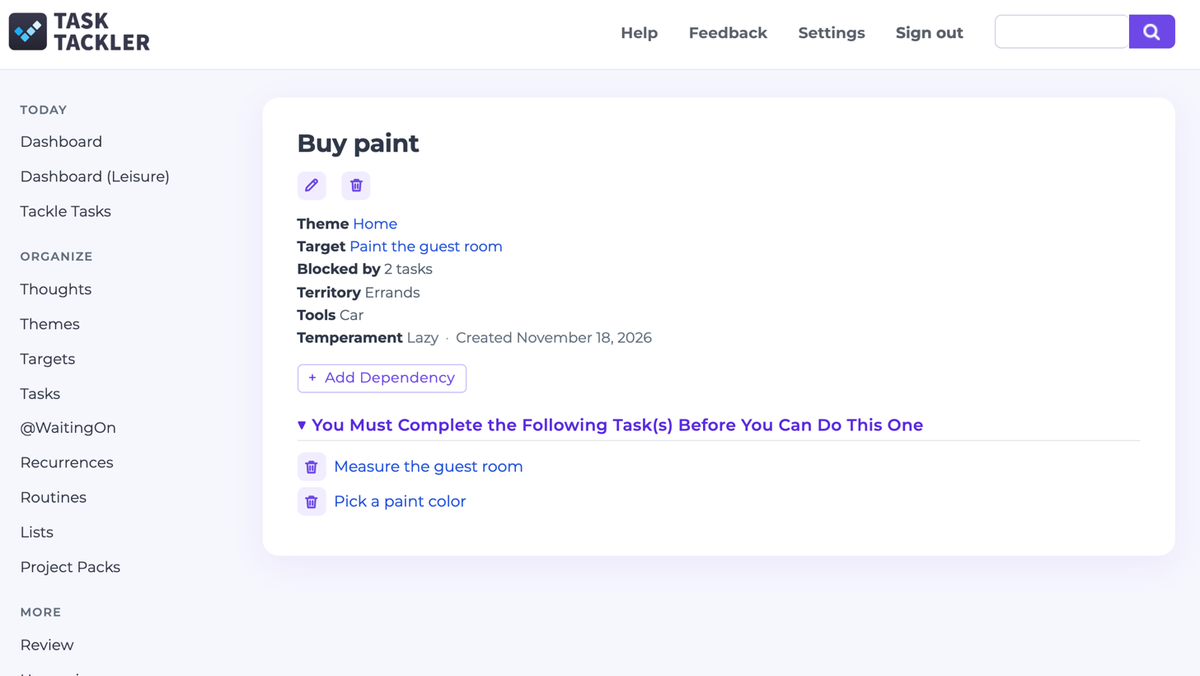
A Task can wait on more than one other Task. Say you’re painting the guest room. You can’t “Buy paint” until you’ve done both “Measure the guest room” (how much paint?) and “Pick a paint color” (which paint?). You can do those two in either order, and “Buy paint” stays hidden until both are done.
These work well as Dependencies:
- “Buy paint” after both “Measure the guest room” and “Pick a paint color” (you need both, in either order)
- “Draft the report” after “Outline the report” (the steps have an order)
These are not good Dependencies:
- A Task you can’t start until a certain day (use Hide Until)
- A Task where the ball is in somebody else’s court (use @WaitingOn)
Adding a Dependency
Open the page of the Task that has to wait (“Buy paint”) and click “Add Dependency.” Under “I need to do this first,” choose a Task that has to be finished first (“Measure the guest room”).
If it’s waiting on more than one Task, click “Add Dependency” again for each of the others (“Pick a paint color”).
What a blocked Task looks like
A blocked Task’s page says how many Tasks it’s waiting for (“Blocked by 2 tasks”), and lists them under “You Must Complete the Following Task(s) Before You Can Do This One.”
While it’s blocked, the Task:
- Stays off the Dashboard and out of Tackle Tasks
- Is listed under “Tasks You Can’t Do Yet” on its Target’s page
- Can’t be marked complete, marked @WaitingOn or snoozed
The page of a Task that has to be done first shows the other side, under “Tasks That Can’t Start Until You Complete This One.”
When the first Tasks are done
Each time you complete one of the Tasks it’s waiting for, that Dependency goes away. Complete “Measure the guest room” and now “Buy paint” is blocked by only 1 task. Complete “Pick a paint color” too, and “Buy paint” appears instantly throughout the rest of the app, because its Dependencies were all completed.
Removing a Dependency
Changed your mind? On either Task’s page, click the trash can  beside the other Task. That removes the Dependency, not the Task.
Dependencies are one of a few ways to put a Task away until you can do it. See Keeping Tasks out of sight until you can do them for the others.


