
@WaitingOn
Use @WaitingOn to set a Task aside while the ball is in somebody else’s court.

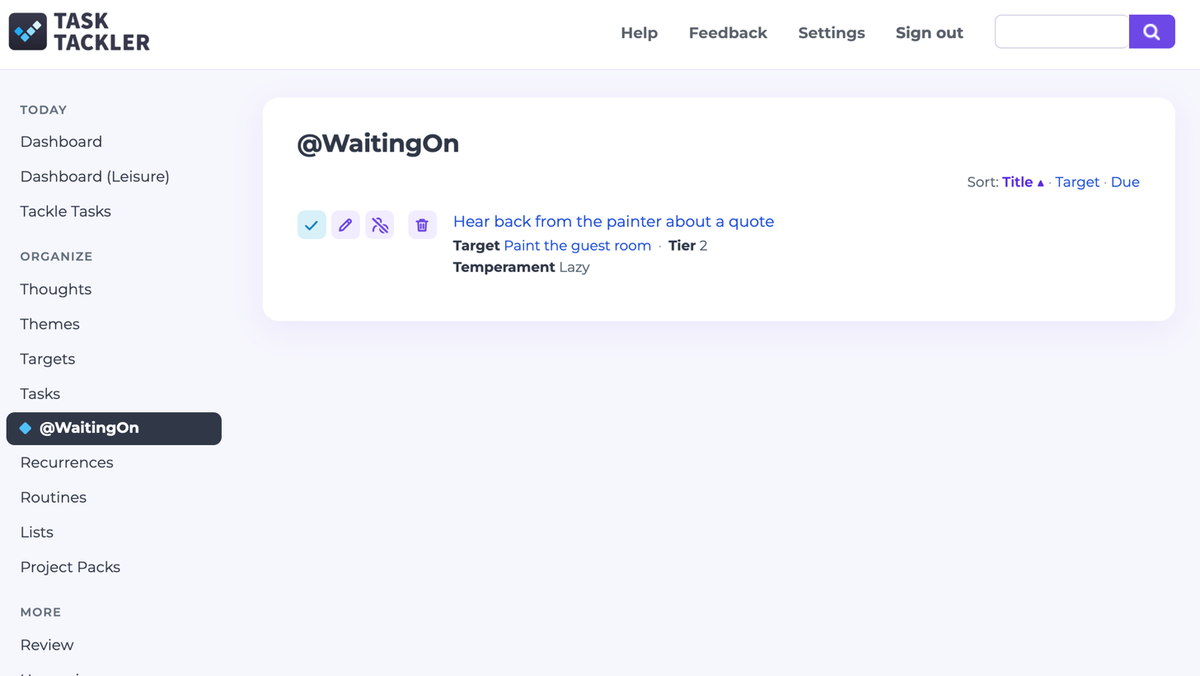
@WaitingOn marks a Task you can’t move forward until someone else does something.
These work well as @WaitingOn:
- You asked the painter for a quote and haven’t heard back (it’s their move)
- You sent a draft out for review (there’s nothing to do until it comes back)
These are not good @WaitingOn Tasks:
- A Task that has to wait for one of your own Tasks (use Dependencies)
- A Task you can’t start until a certain day (use Hide Until)
- A Task you could do now, but not this minute (use Later Today)
Marking a Task @WaitingOn
There are two ways:

Click this icon beside the Task, wherever you see it.
Or check “I’m waiting on someone else for this task” when you add or edit the Task.
Where the Task goes
The Task leaves the Dashboard and Tackle Tasks, and moves to the @WaitingOn page in the menu. That page shows everything you’re waiting on in one place, and you can sort it by title, Target or due date.
You’ll also see it:
- On its own page, with a “waiting on” label beside the title
- On its Target’s page, under “Tasks You Are Waiting on Others to Complete”
When they get back to you

Click this icon and the Task returns to your lists.
If their answer finished the job, you can mark the Task complete  right from the @WaitingOn page.
@WaitingOn is one of a few ways to put a Task away until you can do it. See Keeping Tasks out of sight until you can do them for the others.


